
TeamCounter guides
Record attendance and save a clear session history
Follow a small training group with three neutral participants through three example dates. This guide explains when TeamCounter changes the current date, when it creates a snapshot and which information appears in the CSV export.
By Maximilian Holstein · Last updated: 17 September 2026
Updated: workflow, example data and session-history limits.
Prepare three participants and two possible states
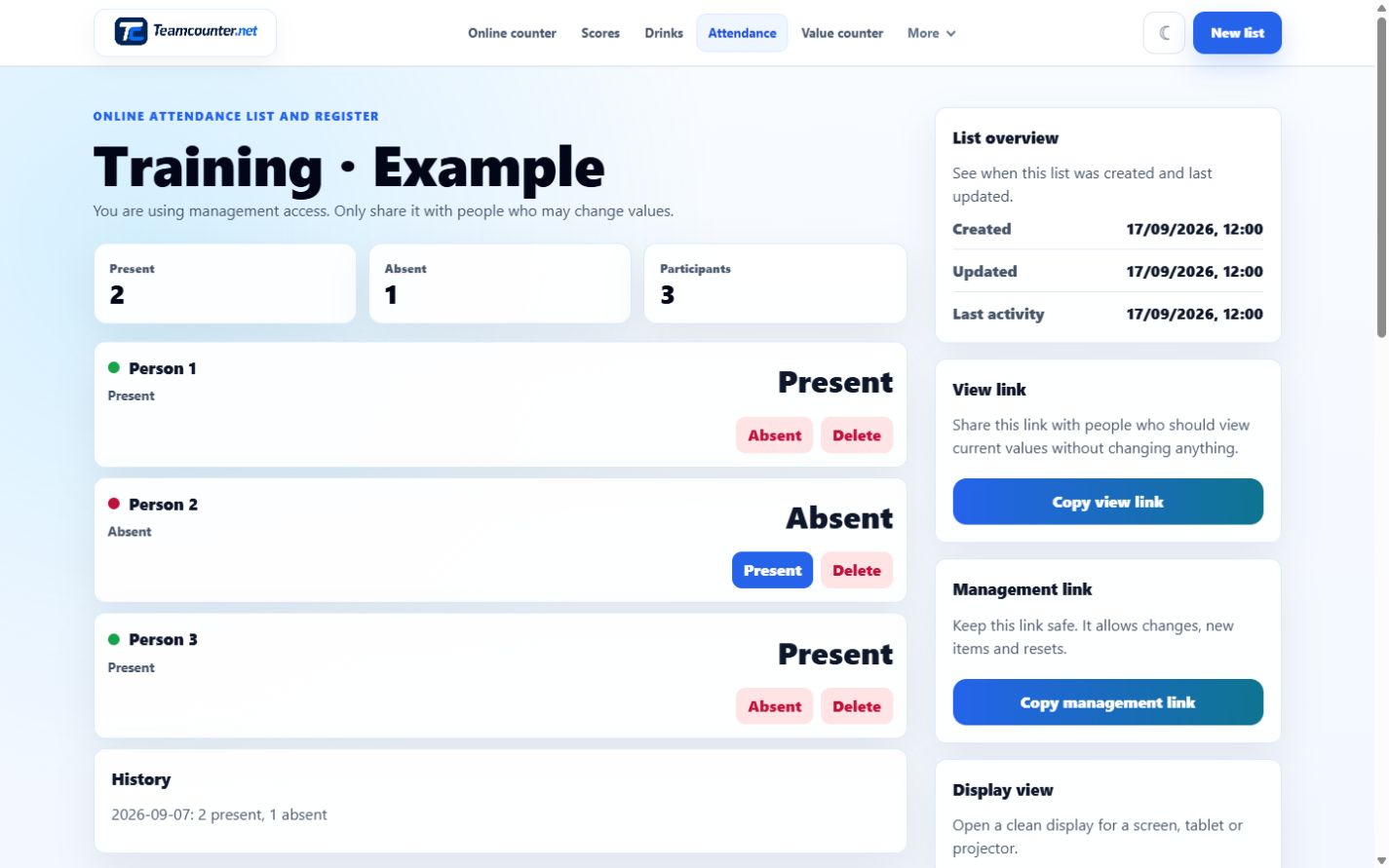
Create a new attendance list with a clear title such as “Training – Example”. Add Person 1, Person 2 and Person 3. New participants start as absent. Each status button switches between present and absent; excused, late and free-text reasons are not additional states.
Choose an online list if several devices need access to the same list, or a local list for this browser. A new local example list is enough to follow this guide. There is no need to use an existing group list for practice.
Save the first session in the right order
- Set the date to 7 September 2026 and choose “Save date”. This sets the current list date but does not yet add a session to the history.
- Mark Person 1 and Person 3 present. Leave Person 2 absent.
- Check 2 present, 1 absent, 3 in total. Correct any wrong status now using that participant’s button.
- Choose “Save session” once. This action adds the current state to the history as a snapshot.
Repeat for two more dates and compare the results
Save the new date first, then check each current status against the example below. Changing a date does not automatically mark participants absent.
| Date | Person 1 | Person 2 | Person 3 |
|---|---|---|---|
| 7 Sep 2026 | present | absent | present |
| 14 Sep 2026 | present | present | absent |
| 21 Sep 2026 | absent | present | present |
For each date, review the three participants and save the session once. These dates are practice inputs, not records of real events.
Distinguish corrections before and after saving
Before “Save session”: change an incorrect status and check the totals again. After saving: changing a status affects the current list but does not update an existing snapshot. Saving again adds another entry instead of correcting the old one.
“All absent” resets all current status values after confirmation. If you use it before a new session, mark the people present again and check the result. For this exercise you can simply change the three statuses individually.
The interface shows the last six sessions and stores at most 120. Export information you need before older sessions leave that limit. Mark an incorrectly saved session in a separate analysis; later status changes will not repair it.
Tell the template apart from the actual export
The three-session print template and example CSV contain the participant pattern above. They are separate templates, not a promise that TeamCounter exports every historical participant status.
“Export CSV” provides current participants plus dates and totals for saved sessions. It does not provide a complete participant matrix across all sessions. Editing a CSV does not update TeamCounter. The export guide explains columns, number formats and the print view.
Set access and decide whether the tool fits
For an online list, give the management link only to responsible editors. Readers can use the view link. Local browser lists cannot be shared between devices through these links. See the guide to link types for the differences.
Use neutral labels or minimal initials and leave out absence reasons and health information. The tool suits a simple group overview; it is not a time-tracking system, school administration system or legally binding attendance record.