
TeamCounter guides
Check a CSV, work with a spreadsheet and print a PDF
The EUR 4.10 drink example shows how to move from a TeamCounter export to a checked table. Download the original example file, view its values and follow the checks for columns, numbers and print output.
By Maximilian Holstein · Last updated: 19 September 2026
Updated: example CSV, import checks and print guidance.
Choose the right file and keep the original
All browser tools offer “Export CSV”: the tally list as well as the tools for drinks, attendance, scores, values and tournaments. The tally-list file starts with the list name and an “As of” time stamp and has the columns Entry, Count, Target and Achieved in % plus a total row; its “Print view” shows the same list cleaned up for printing or saving as a PDF, also for a local list without internet. CSV is a text file with rows and columns, not a native .xlsx Excel workbook. A PDF is created separately through the browser’s print function and contains a static view.
Download the original example file from the drink exporter to follow along. It was generated with synthetic inputs. Keep the original and work on a copy. The drink-list guide explains how the four example rows are built.
Inspect the contents before further processing
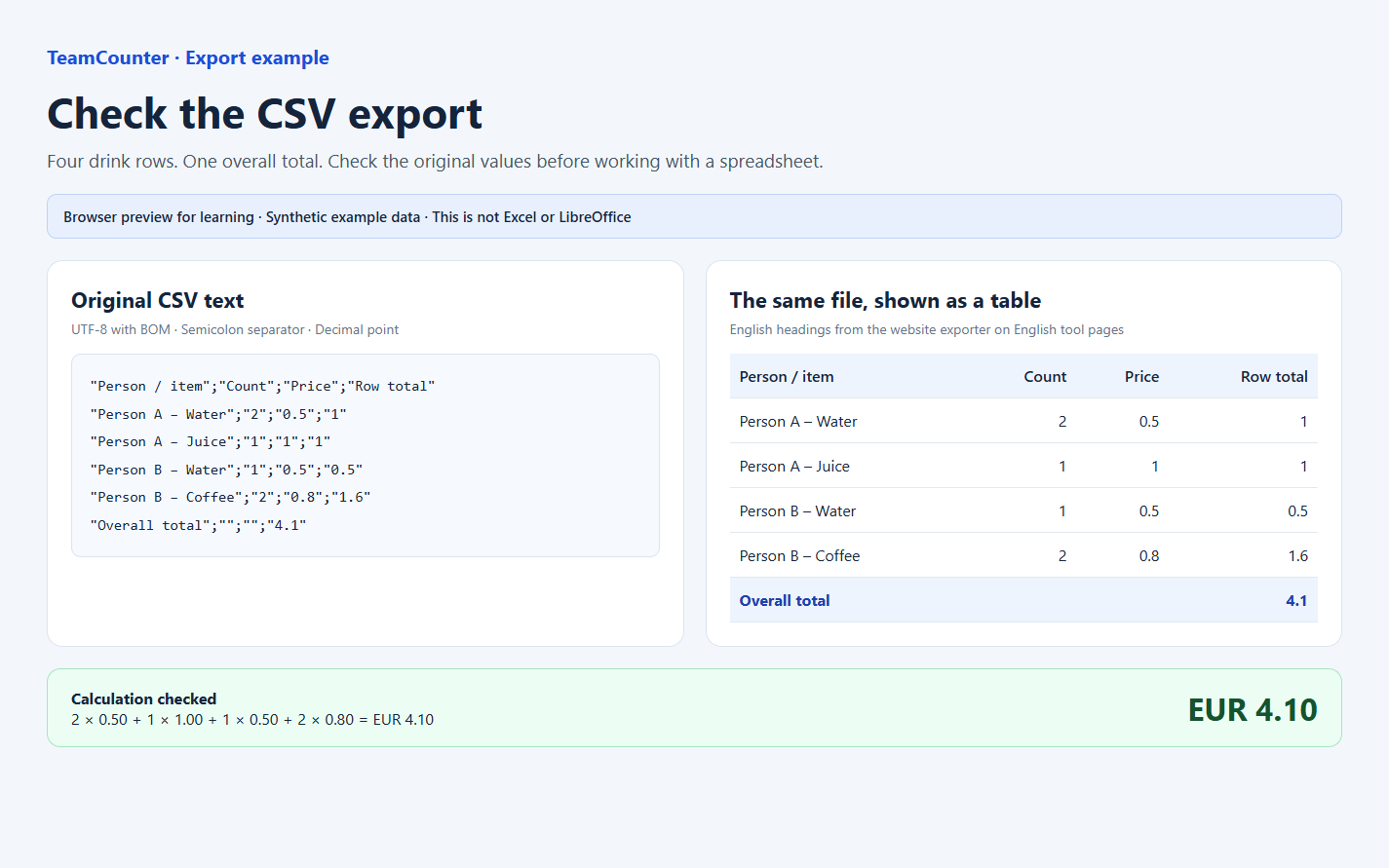
The file has four columns: Person / item, Count, Price, Row total. Four data rows and an Overall total row follow. German tool pages export the same values in the same order with the German headings Person, Einträge, Preis, Summe.
The first two CSV lines are:
"Person / item";"Count";"Price";"Row total"
"Person A – Water";"2";"0.5";"1"
Semicolons separate fields and double quotes delimit them. 0.5 means half a euro. The overall total row ends in 4.1, meaning EUR 4.10. The screenshot below is a local view of the example file, not an Excel workbook screenshot.
Open the CSV with a preview in Excel or LibreOffice
- In Excel, choose “Data → From Text/CSV”, or use the text-import dialog in LibreOffice Calc. Exact labels may differ between versions.
- Select the file and check UTF-8 and the semicolon separator. The file includes a UTF-8 BOM; double quotes are the text delimiter.
- Before importing, check that the preview has four columns and displays the column names and the dash in the names correctly.
- Import labels as text. For number columns, choose a setting that recognises the decimal point.
0.5must not become a date, 5 or 50. - After importing, verify 2 × 0.50 + 1 × 1.00 + 1 × 0.50 + 2 × 0.80 = EUR 4.10.
Do not allow names or untrusted text to run as spreadsheet formulas. Explicitly use text for those columns and inspect the preview.
Recognise common import errors from the result
- Everything appears in one column: reopen the original through the import dialog and select semicolon.
- Accents or dashes are broken: check UTF-8 instead of manually replacing names.
- Totals are wrong: compare the original CSV with the preview, then check decimal settings and number-column types.
- Your formula doubles the total: the final row already contains the overall total. Add only the four data rows.
After adding formatting or formulas, save your working copy in your spreadsheet application’s format. This does not change the original TeamCounter list. There is no CSV re-import or synchronisation from Excel.
Create a PDF through print preview
- Open the tool’s print view and choose a PDF destination in the browser, such as “Save as PDF”.
- Inspect the title, every row, totals, page margins and page breaks. Adjust orientation or scale if needed.
- Turn off browser headers and footers if they would expose a private list URL.
- Save the file and reopen it. Share it only after checking the saved output.
A blank print form is available if you need a paper list without list data. PDFs do not calculate or update after later list changes.
Understand what an export cannot replace
An attendance export includes current participants and saved session totals, not a complete historical participant matrix. The attendance CSV template with individual people at each example date is a separate worksheet. See the attendance guide for details.
Neither CSV nor PDF recovers a management link or provides an automatic restore mechanism. Keep needed files protected and share only necessary data. Accounting, payroll and legally binding records require an appropriate specialist application.