
TeamCounter guides
Count a score online and show it on a second screen
The TeamCounter score counter manages points for teams or individual people and shows the current state through a reduced display on a second device. It suits game nights, training sessions and small competitions without a complex tournament plan.
By Maximilian Holstein · Last updated: 19 September 2026
Preparing the score
- Create a new score counter.
- Add the teams or people taking part.
- Check the starting values and the point steps you need.
- Set a test point and take it back again.
- Open the management device and the display device before you start.
The large display on a second device
Open the display link on a monitor, tablet or projector. The reduced view hides management functions. Both the display and the view link pick up saved changes without reloading, usually within about a second. If the connection drops, the display reconnects automatically; when all live connections of the website are in use (currently 6), it updates about every 10 seconds instead. The control bar switches between light and dark mode and starts full screen where the browser supports it (keys T and F). The management device stays with the person who is allowed to change points.
Without internet, use a local score: its large display opens in a new tab or window of the same browser, for example for a projector connected to the same laptop, and updates without a connection. On another device this only works with an online score.
Example: game night with two teams
One person manages the points on a smartphone. The television shows only the large display. Other participants receive the view link when needed. After the game the winner can be marked and the score reset for the next round.
For scoring a quiz with multiple teams, keep a separate round-by-round sheet and show the running totals on the display.
Replayed: 4:2 with one correction
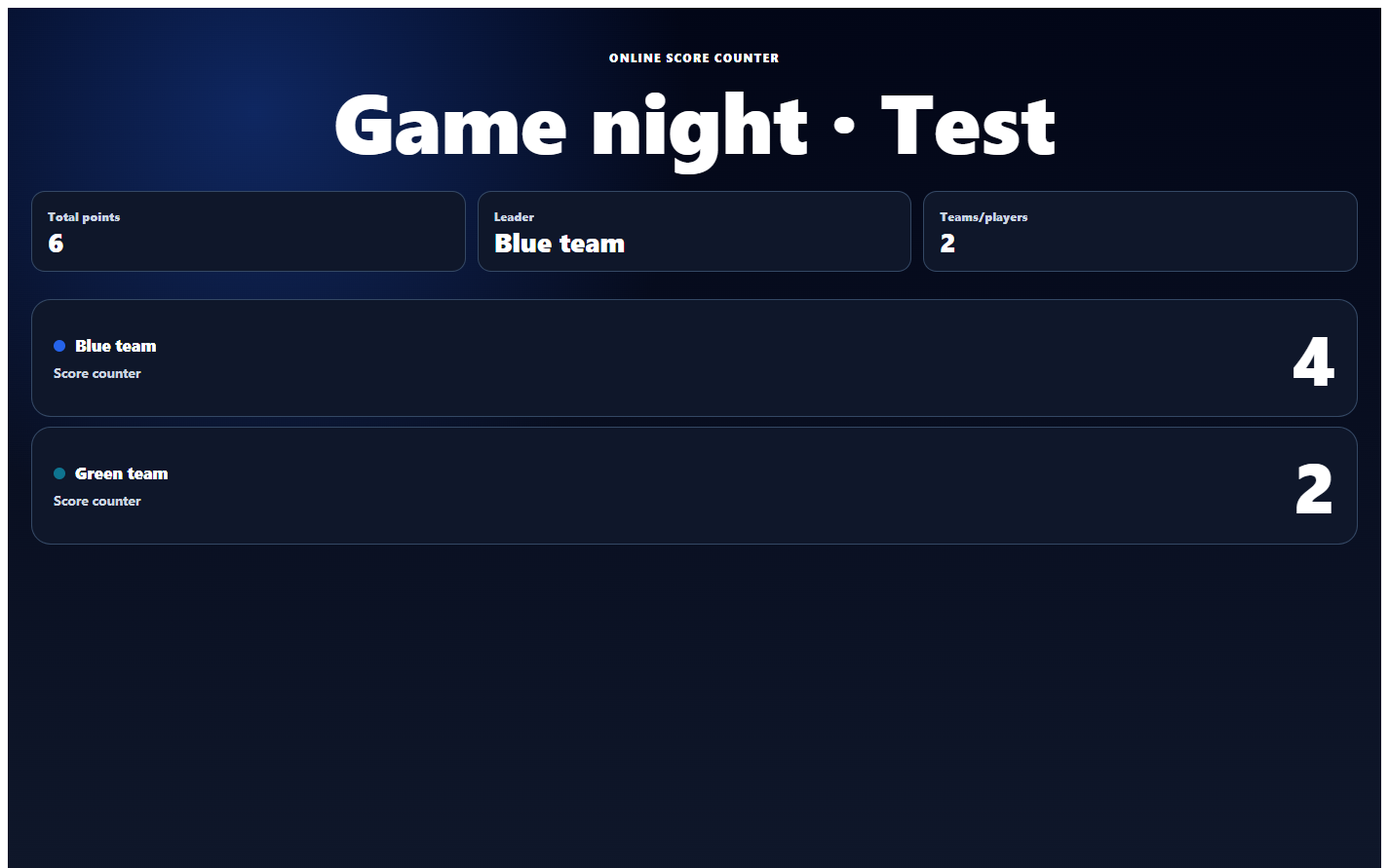
We ran this sequence on 19 September 2026 with our own test list and neutral test data. A new score counter starts with “Blue team” and “Green team” at 0:0 and the point steps +1, +5 and +10. The minus button always removes exactly one point.
| Step | Action on the management device | Score Blue : Green |
|---|---|---|
| 1 | Create a new score counter | 0 : 0 |
| 2 | “+5” for Blue team | 5 : 0 |
| 3 | “+1” for Green team | 5 : 1 |
| 4 | “+1” for Green team again | 5 : 2 |
| 5 | Take back an accidental Blue point with “−1” | 4 : 2 |
| 6 | Open the large display in a second browser window | 4 : 2 |
The large display and the view link showed 4:2 without plus, minus or editing fields. At that time the large display reloaded the score roughly every ten seconds; it now shows changes without reloading, usually within about a second.
Winner and reset: “Leader” automatically shows the team with the most points. “Winner” sets a manual mark and does not decide anything itself. “Reset game” asks for confirmation, sets all points to 0 and removes the winner mark; teams, names and point steps stay. Save a result first, for example with “Export CSV”.
Two management devices at once: If a second device saves from an outdated state, TeamCounter rejects that change, reloads the current score and asks you to repeat it. It is most reliable when only one person enters points.
Sharing links safely
The display link is only for showing the score, and the view link is read-only as well. Only the management link allows changing points, marking a winner and resetting. Do not post it in public groups or on openly accessible websites.
Keeping the score understandable
Use short, unambiguous team names and agree in advance which action is worth how many points. If several people want to count, decide who holds the management link. Do not distinguish teams by colour alone, so the score stays readable on any screen.
For games over several rounds or a small tournament, see how to keep score for games, teams and rounds, including when to reset between games.
Limits of the score counter
The score counter does not create tournament brackets, does not calculate rankings across several games and keeps no audit-proof match record. For a knockout tournament with 3 to 16 participants there is the separate tournament bracket; it has no group stage, third-place match or double elimination either. For official competitions with binding results a specialised application is required.
More on devices: device guide. More on shared editing: guide to editing lists together.