
TeamCounter guides
What’s new in TeamCounter for Android?
Short answer: TeamCounter for Android adds a separate offline tally counter for counting events on your phone without an internet connection. The counter supports volume-button input, a touch lock, an adjustable step size and a history feature. Version 2.3.19 also adds separate notification preferences and a new introduction you can replay from the app menu. Shared online lists still need an internet connection for current server values and shared changes.
Feature details checked: · Version 2.3.19 · Verified German Google Play update date: 29 September 2026
By Maximilian Holstein · Last updated: 30 September 2026
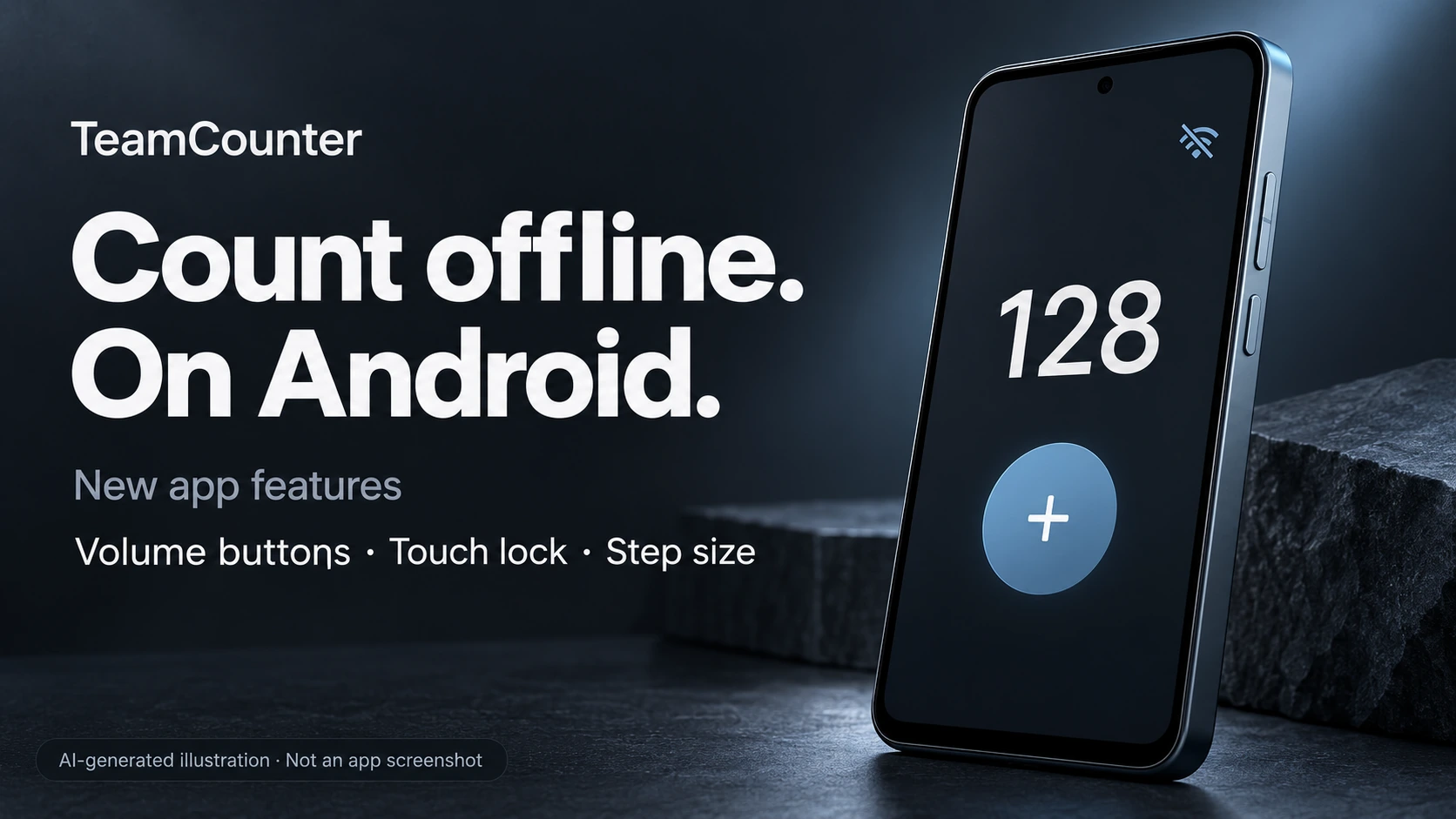
What is new in TeamCounter 2.3.19?
The update introduces the offline counter and its controls, separate notification preferences and a replayable introduction. These additions are listed in the official release notes for version 2.3.19.
| New feature | What it does |
|---|---|
| Separate offline tally counter | Counts events on your Android device without an internet connection |
| Volume-button input | Lets you operate the counter with your phone’s volume buttons |
| Touch lock | Locks touch input for the counter |
| Adjustable step size | Lets you change the amount by which the count changes with each input |
| Counter history | Adds a history feature to the offline counter |
| Separate notification preferences | Lets you choose reminders separately from tips and news |
| Replayable introduction | Lets you open the new introduction again from the app menu |
The release notes also list general improvements and bug fixes without describing individual fixes.
What can you count with the offline tally counter?
You can count visitors, workout repetitions, rounds or other repeated events on one Android device without internet. Instead of drawing a mark on paper each time something happens, you enter a count on your phone.
TeamCounter’s new Android counter is designed for these standalone counting tasks. Choose it when you need a count on your own device rather than a shared online list.
Before starting, decide what one entry represents. If you are counting visitors, for example, will you count every entry through the door or each person only once? A consistent rule matters as much as the counter itself.
For help choosing a counting method and planning an event count, see the guide to counting visitors at an event.
Can you count with the volume buttons and use a touch lock?
Yes, the offline counter supports your Android device’s volume buttons and includes a touch lock. The buttons provide a physical input option alongside touch controls.
Try a few test inputs before using it for a longer count. Check how you want to hold the phone and which controls suit the task. This is particularly useful when your attention needs to stay on the event you are counting.
The touch lock applies to the counter’s touch controls. It is separate from Android’s screen lock; the release notes do not promise counting with the screen switched off.
What does the adjustable step size do?
The step size controls how much the count changes with each input. You can select an available step size in TeamCounter’s offline counter to match your counting rule.
Individual events and fixed-size groups require different counting rules. Set the rule before you begin and keep it consistent throughout the count.
The update also adds a history feature to the counter. Together, the step-size setting and history are part of the new standalone counting tool.
How do you start using the Android offline counter?
Install or update TeamCounter through Google Play, then open the separate offline counter from the app menu. The features described here are listed for version 2.3.19; check which version is available for your device.
- Check the app on Google Play. Open the official TeamCounter listing and install or update the app if an update is available for your device. The features described here belong to version 2.3.19.
- Open the counter from the app menu. Use the separate offline counter for a standalone count on your phone.
- Choose your counting rule. Decide what each input represents and select an available step size that fits.
- Try the controls. Test the volume buttons and, if useful for your task, the touch lock before starting the actual count.
The TeamCounter Android app overview explains the app’s wider range of list types and links to the official download.
Should you use an offline tally counter, online tally counter or point counter?
Use the Android offline counter for a standalone count, an online tally counter for a shared list, and a point counter to keep separate scores for players or teams. The browser’s local tally tool is a separate option if you do not want to install the Android app.
| What you need | Which option to use |
|---|---|
| A standalone count on your Android phone without internet | The app’s separate offline tally counter |
| A shared tally that other people can update | A shared online list with the appropriate management link |
| An online tally counter in a browser | The TeamCounter web counter |
| Separate scores for players or teams in a browser | The online point and score counter |
| An offline tally in a browser, without installing the Android app | The separate offline browser tally counter |
If you are looking for a point counter for a game with several players, use a score list that keeps the players or teams distinct. The new offline tally counter is useful when you need a standalone count.
For shared online lists, an internet connection is still required to retrieve current server values and share changes. The new offline feature does not imply that separate counts from different devices will merge automatically.
The offline browser tool and the Android counter are also separate options. Installing the app does not automatically transfer a local browser tally into the Android app.
Can you choose reminders separately from tips and news?
Yes, version 2.3.19 lets you select reminders separately from tips and news in the app settings. You can turn these categories on or off individually.
For example, you can keep reminders enabled while turning off tips and news.
Can you replay the new introduction?
Yes, the new introduction is available again from the app menu. You can replay it beyond the first app launch.
This lets you return to the introduction after a break or whenever you want another look.
Which existing list features does TeamCounter still support?
TeamCounter continues to support digital tally lists, points and scores, attendance lists, drink lists and shared counting tasks. The offline tally counter adds a separate counting option alongside those existing features.
You can also save frequently used list links and open them again later. For shared online lists, view links are for reading the list, while management links give access to make changes.
These are existing app capabilities. The separate offline counter, its controls, notification preferences and replayable introduction are the focus of this update.
Frequently asked questions
Can I use TeamCounter without internet?
Yes, the Android app’s separate offline tally counter works without internet. Shared online lists and current server values still require a connection.
Can I count with my phone’s volume buttons?
Yes. Version 2.3.19 adds volume-button input to the offline counter, alongside a touch lock, adjustable step size and history.
Is the Android app the same as the browser counter?
No: TeamCounter is a native Android app, while the web tools run in a browser. Local browser data and local app data are separate.
Do I need a TeamCounter account?
An account is not required for basic use, according to the official app description. Shared online lists are accessed through their list links.
Is TeamCounter free?
The app is free to install and includes ads and optional in-app purchases. Premium features cover expanded statistics and exports, so a free download does not mean every additional feature is free.
Can I keep reminders but turn off tips and news?
Yes. The update adds separate preferences for these notification categories in the app settings.
Ready to use the new features? Check TeamCounter on Google Play for the version available to your Android device.
Sources
- Official TeamCounter Google Play listing and release notes, German edition: primary source for the changes in version 2.3.19, checked on 30 September 2026. The listing showed an update date of 29 September 2026.
- TeamCounter Android app overview: official description of existing list types, native Android use, shared online lists and the separation of local browser and app data.
- Offline tally counter in the browser: official explanation of the separate browser tool and its local storage.
- Counting visitors at an event: practical guidance on choosing a counting method and applying a consistent counting rule.
Store verification limit: The release details and update date above were verified in the German Google Play listing. The US and UK listings could not be independently verified during this review, so this article does not confirm an identical rollout date or availability for every device; check Google Play for your available version.