
How do you keep score offline with Quick Score in the TeamCounter Android app?
Quick answer: Quick Score in the TeamCounter Android app lets you update points for two to 20 teams or players offline on one device using plus and minus controls. It saves scores locally and supports Undo, an adjustable scoring step and a confirmed reset. For shared scoring across the app and a browser, shareable links or a second display, use the standard online score counter.
By Maximilian Holstein · Published: · 9 min read
A table-tennis match, darts game, quiz or family game night often needs only one thing: a clear current score. Quick Score is built for that simple job. It keeps the interface focused on the teams, the numbers and the next tap instead of adding tournament management or extra confirmation screens.
On this page
Which Quick Score features work on one Android device?
| Feature | What it does |
|---|---|
| Two to 20 participants | Create named teams or individual players |
| Large plus/minus controls | Change points directly during play |
| Adjustable scoring step | Use values such as 1, 2, 3 or 5 per tap |
| Two-team scoreboard | See both scores together in a compact view |
| Multiple participants | Display three or more teams in a vertical layout |
| Undo | Reverse the latest incorrect score change |
| Editing | Adjust participants and settings later |
| Confirmed reset | Return all scores to the starting value deliberately |
| Local saving | Keep the current score after leaving or restarting the app |
| Offline use | Continue scoring without an active internet connection |
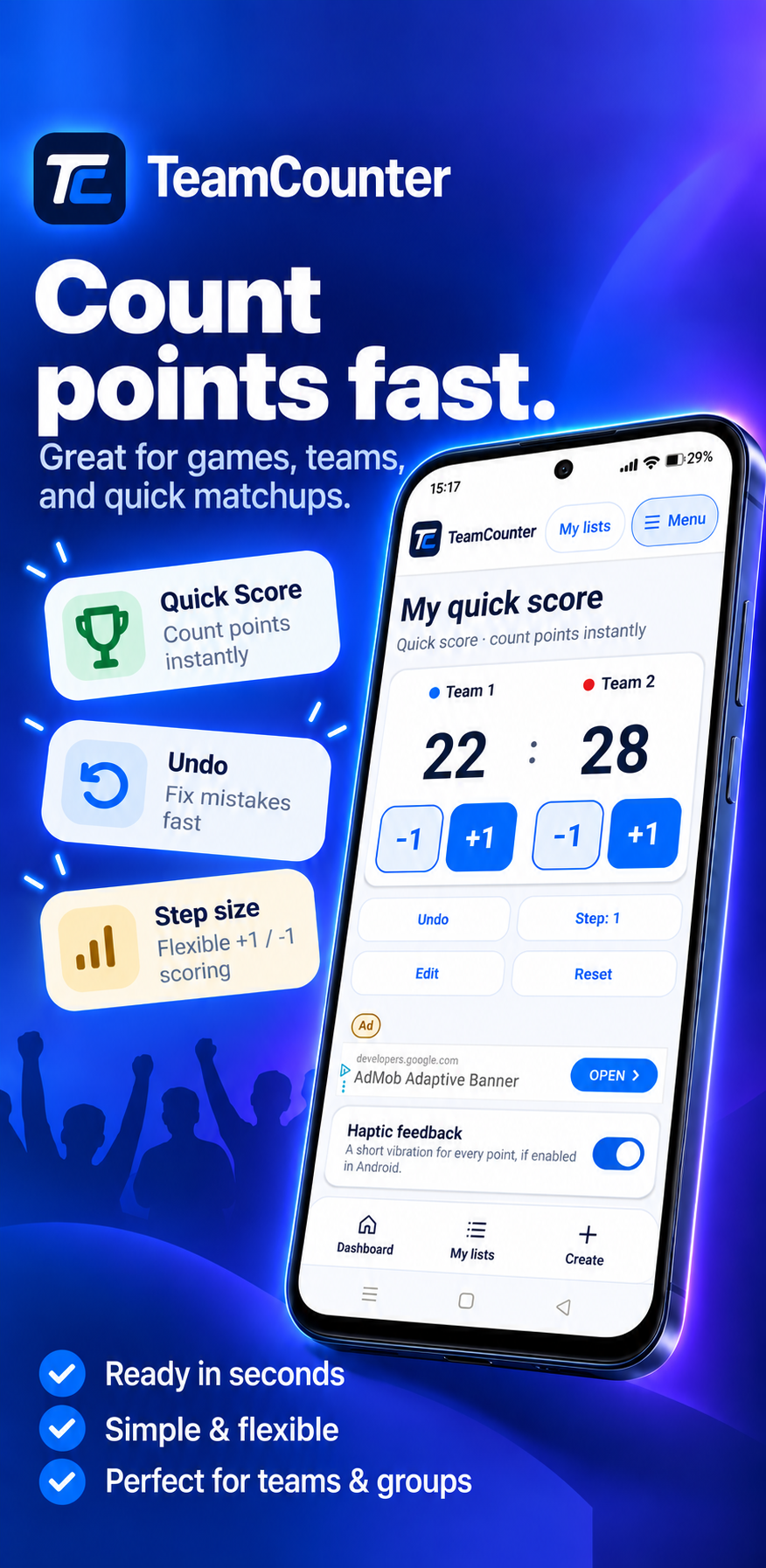
According to the official Google Play listing, Quick Score supports two to 20 teams or players, selectable steps such as 1, 2, 3 or 5, Undo and a confirmed reset. The manufacturer describes it as “Offline, no account needed.” These are published feature specifications; no measured time saving is implied.
What is Quick Score in the TeamCounter Android app?
Quick Score is an additional mode in the TeamCounter app for Android. It does not replace the existing score features. It adds a reduced scorekeeper that is designed for immediate point entry on one device.
You create a separate Quick Score game, name at least two teams or players and choose a suitable scoring step. During play, one tap on plus or minus changes the selected participant's score immediately.
Quick Score is useful when:
- only the current total matters,
- points need to be entered without interrupting the game,
- one phone or tablet is used as the scorekeeper,
- sharing and cross-device synchronisation are not required,
- the counter needs to work without an active internet connection.
The app does not decide whether a point is valid or apply the rules of a specific sport automatically. The players still follow the official rules or the scoring method agreed before the game.
When several people need to view or edit the same score, use TeamCounter's standard shared score counter instead of the local Quick Score mode. It can be operated in the app while the same score is open in the web version on a PC or another device.
How do you create a local Quick Score game in the Android app?
- Open TeamCounter on an Android phone or tablet.
- Choose Quick Score when creating a new list or score.
- Give the game a clear name, such as “Friday game night” or “Training match”.
- Add at least two teams or players.
- Choose a scoring step, for example 1, 2, 3 or 5.
- Start the game and update the correct participant with plus or minus.
For two participants, the compact scoreboard view keeps both scores together. With three or more participants, TeamCounter displays the teams or players in a clear vertical layout.
How do you update and correct points in Quick Score?
A regular point change within Quick Score does not open an extra confirmation dialog. Tapping plus increases the relevant score immediately; tapping minus reduces it according to the selected step.
This makes the app practical during fast play. The person keeping score does not need to open a number field, type a value and confirm it after every point. Large controls and prominent numbers keep the current result easy to read.
Quick Score Undo: reverse the latest point change
If the wrong team was selected or a button was tapped once too often, use Undo to reverse the most recent score change. Undo corrects the last scoring action without deleting the complete game.
Quick Score reset: confirm the next game
Quick Score can be reset when the next game begins. Because a full reset removes the current values, TeamCounter asks for confirmation before completing it. Ordinary plus and minus actions remain immediate.
Which games suit the local Quick Score mode?
Quick Score is not tied to one sport or board game. It works whenever teams or players have a running total.
Examples include:
- table tennis, badminton and foosball,
- darts and other target games,
- card and board games,
- quizzes and family game nights,
- training challenges and friendly competitions,
- classroom, club or office challenges.
A specialist app may be more suitable when a game needs automatic set logic, service changes, brackets, detailed round history or official match reporting. Quick Score deliberately focuses on adding and subtracting points quickly.
How do you use Quick Score for two teams at game night?
Team Blue and Team Green are playing a short challenge in which each confirmed hit is worth one point.
- Create “Team Blue” and “Team Green”.
- Set the scoring step to 1.
- Tap plus for the correct team after each confirmed point.
- Use Undo if a point is assigned incorrectly.
- Reset the scores after the result has been noted and before the next game starts.
The counter does not decide when the game ends. Agree on the target score and the tie rule before play begins.
ITTF table tennis: manual scoring with Quick Score
For a table tennis example, choose two players and step size 1 in Quick Score. Under ITTF rule 2.11.1, a game normally ends at 11 points; from 10:10, it requires “gaining a lead of 2 points”, so 11:10 is not enough and 12:10 wins the game. You enter each point yourself and check the game rules; Quick Score does not perform automatic set scoring or certify an official result. (ITTF Statutes 2026, page 43)
When do you need the shared online counter instead of Quick Score?
Quick Score remains on one Android device and has no shareable view, display or management link. If several devices need the same score, use the standard shared TeamCounter score counter; the online scoring guide explains that workflow, and the second-screen guide covers a separate display. A management link permits editing and should only go to authorised people.
What is the difference between Quick Score and the shared online counter?
Quick Score and TeamCounter's online score counter solve different problems.
| Need | Quick Score in the app | Standard shared score counter |
|---|---|---|
| Fast scoring on one device | Strong fit | Possible |
| Score without internet | Yes, locally on one device | No; the shared online score needs a connection |
| Use the app and web version together | No | Yes |
| Show the score on several devices | No | Yes, with view and display links |
| Let another person edit the score | No | Yes, with the management link |
| Display on a PC, monitor or projector | Not its main purpose | Yes |
| CSV or print export | Not the focus | Yes |
| Installation | Android app required | A current browser is enough for the web view |
Choose Quick Score when speed, offline use and a reduced local interface on one Android device matter most. Choose the standard online score counter when the app and web version need to be used together, the result needs to be shared by link, displayed on another screen or exported. The guide on how to count a score online explains that shared workflow in detail.
How do offline use and local saving work in Quick Score?
Quick Score runs locally on the Android device and can be used without an active internet connection. Current scores are saved automatically on the device and remain available after the app is restarted.
This is different from a shared online list. A local Quick Score game does not receive a view link or management link and does not automatically synchronise with another device. Basic use does not require a TeamCounter account.
The app is free to install, can display advertising and offers in-app purchases. Current availability and device compatibility are shown in the official Google Play listing.
What are the limits of Quick Score in the Android app?
The reduced interface is useful because it has a clear scope:
- no automatic sport-specific scoring rules,
- no tournament bracket or league table,
- no live cross-device synchronisation,
- no shareable view or management link,
- no audit-proof or official match record,
- currently an Android app feature.
For official competitions, binding result records or complex tournament formats, use the system required by the relevant organiser or governing body. TeamCounter is designed for simple games, training sessions and small friendly competitions.
When is Quick Score the right choice?
Quick Score turns an Android phone or tablet into a straightforward scorekeeper for two or more teams or players. Large plus and minus controls, an adjustable scoring step, Undo, local saving and offline use keep the attention on the game rather than the setup.
Install TeamCounter on Google Play and choose Quick Score when creating a new counter. When the same score needs to be used in the app and on a PC, shared with other devices or shown on a larger screen, use the standard TeamCounter score counter with shareable links instead.
What else should you know about Quick Score in the Android app?
What is Quick Score in TeamCounter?
Quick Score is a separate mode in the TeamCounter Android app. It lets you keep points for two or more teams or players with large plus and minus controls during a game.
Can I keep score offline with Quick Score in the Android app?
Yes. Quick Score runs locally on the Android device and does not need an active internet connection while scoring. The current values are saved on the device.
How many teams or players does Quick Score support?
The official Google Play listing specifies two to 20 teams or players per Quick Score game. TeamCounter displays three or more participants in a clear vertical layout.
Can I change the Quick Score step size?
Yes. You can choose a scoring step that fits the game, such as 1, 2, 3 or 5 points per tap.
How do I correct a wrong point in Quick Score?
Use Undo to reverse the latest score change. To start a completely new game, use the reset function and confirm the reset.
Does Quick Score sync between devices?
No. Quick Score is stored locally on the Android device being used. Choose TeamCounter's online score counter when you need view links, editing links or a shared live display.
Which alternative to local Quick Score works in the app and a PC browser together?
The alternative is the standard shared TeamCounter score counter. One person can update the score in the TeamCounter app while the same score is open through a view, display or management link in a browser on a PC or another device.
Is Quick Score available on iPhone?
Quick Score is a feature of the Android app. The TeamCounter web version can be used in a browser on iPhone and iPad, but that does not transfer the Android app's local Quick Score mode to iOS.
Who wrote this Quick Score guide and which sources support it?
Written by Maximilian Holstein.
- Official TeamCounter Google Play listing — Android product specifications, advertising and in-app purchases; listing updated 5 October 2026.
- TeamCounter Android app — app overview.
- Shared online score counter — linked alternative for several devices.
- Online scoring guide and second-screen guide — dedicated online workflows.
- ITTF Statutes 2026, rule 2.11.1 — rules for the narrow manual table tennis example.